How to redact a scanned PDF for free, without uploading it
Published · 5 min read
To redact a scanned PDF, open it in a tool that reads the page images, cover the sensitive text, and save a copy rebuilt from pixels. RedactPal does this free in your browser: it reads scanned pages with on-device OCR, highlights what it finds, and never uploads the file. Check every box before you export.
Last tested: November 16, 2026 · Chrome on Windows 11 · By Yuntao Zou
How do you know a PDF is scanned?
Open the PDF and try to select a word with your mouse, or press Ctrl+F (⌘F) and search for a word you can see. If nothing highlights, the page is a picture of text. Photographed documents, scans from a printer or a phone scanning app, and faxes are usually image-only.
Some scans are "searchable". The scanning software ran OCR and hid the recognized text behind the image, so the page looks like a picture but search works. That hidden text matters, and the next section explains why.
Why is redacting a scan different?
A scanned PDF stores each page as an image. If you cover a number with a black rectangle in a PDF editor, the rectangle is a separate shape on top. Two things can still be underneath:
- The original image. The number is still in the picture, and someone can remove or move the shape to see it.
- The hidden text layer, if the scan is searchable. Select all, copy, and the recognized text pastes out, boxes and all.
Real redaction removes both. The only safe approach is the one RedactPal uses: render each page to an image, paint solid boxes into the pixels, and build a new PDF from those pictures. Nothing from the old file, image layer or text layer comes along. Metadata such as author and title is dropped too.
The other half of the job is finding the text, because you can't search a picture. That is where OCR comes in.
How do you redact a scanned PDF with RedactPal?
- Drop the PDF on redactpal.com/redact-pdf, or tap Choose a PDF. It is opened in your browser. It isn't sent anywhere.
- Wait for the pages to be read. A page with no text layer is rendered at about 200 DPI and read with on-device OCR. This takes a moment per page. The OCR engine and its English language data load from RedactPal's own site, and you can watch that in your browser's Network tab.
- Check every page. Highlighted items are covered. Tap one to keep it visible. Drag a box over anything else.
- Download the redacted PDF and open it once before you send it.
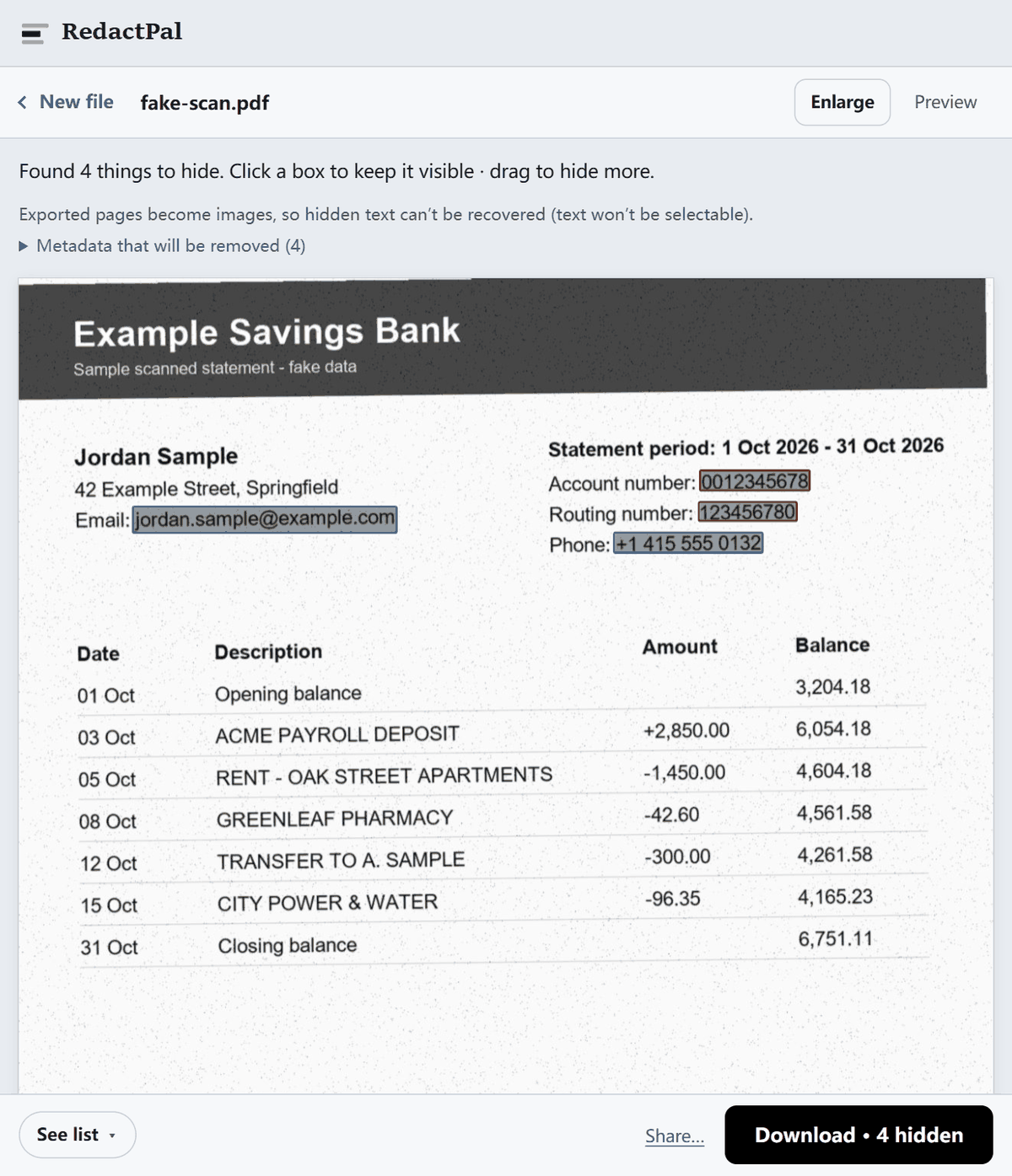
In the example above, the scan has no text layer at all, and OCR found the email address, the phone number, the account number and the routing number. The name and street address have no fixed format, so RedactPal leaves them for you: drag one box over the name and it offers to hide every other occurrence.
RedactPal reads English. If your scan is in another language, expect weaker results on the words, so cover those parts by hand. The numbers are usually the part you care about, but check each one.
What does OCR miss?
OCR is good at clean printed text and weaker at everything else. Check these by eye:
- Handwriting and signatures. Cover them by hand.
- Faint, skewed or low-resolution scans. A scan at 150 DPI or less, a crooked page or a dark corner can cost you words.
- Stamps, logos and text over images. Drag a box if they contain anything sensitive.
- Small print and footers. Zoom in on the margins, where reference numbers and account details often sit.
The rule is the same as for any redaction: the highlights are a head start, and the final check is yours. If RedactPal can't read a page at all, it says so with a warning on that page rather than showing a reassuring "nothing found". Then you draw the boxes yourself.
A scan with a clear text layer is easier. RedactPal uses the text layer directly when a page has one, and applies OCR to large embedded images on those pages too, for example a screenshot pasted into a Word-made PDF.
What about a PDF that mixes text and scanned pages?
It works page by page. Pages with a text layer use it. Pages that are mostly images are read with OCR. A text page with a big embedded image, such as a photographed ID card pasted into a form, has that image read as well. You review all of it in one list.
How do you check the result?
- Open the downloaded PDF and look at every page. Each box should be solid black.
- Press Ctrl+A / ⌘A, copy, and paste into a text editor. Nothing should paste, because the export is image-only.
- Zoom in around the boxes for anything you meant to hide.
Our guide to checking that a PDF redaction worked covers four tests, including how to look at metadata. For a bank statement scan in particular, see redacting a bank statement.
What if you need the text to stay searchable?
The redacted copy is made of page images, which is exactly why hidden text can't survive in it. Keep your original for your own use. If the recipient needs a searchable file, run OCR on the redacted copy with any OCR tool you trust, after you have checked the boxes.
Why not use a cloud OCR tool?
You can. Some tools redact scans by uploading them and running OCR on a server. For a document with account numbers on it, that means the file travels somewhere before it is protected. RedactPal reads and redacts the pages on your device, so the unredacted scan never leaves it. That is the difference in practice, not a judgment about other tools: for comparison options see PDF24, UPDF and the best free redaction tools.
How to redact a scanned PDF
- Drop the scanned PDF. Open redactpal.com/redact-pdf/ and drop the file. It is opened in your browser and not sent anywhere.
- Wait for the text to be read. Pages with no text layer are read with on-device OCR, which takes a moment per page.
- Check every page. Review the highlighted items, tap one to keep it visible, and drag a box over anything the OCR missed.
- Download and check. Download the redacted PDF, open it, and page through it once before you send it.
Redacting scanned PDFs – questions
Does RedactPal work on scanned PDFs?
Yes. When a page has no text layer, RedactPal renders it and reads it with on-device OCR, then highlights emails, phone numbers, card numbers, IBANs, account numbers and keys. You review every box and drag over anything it missed.
Which languages does the OCR read?
English. Pages in other languages may be read poorly or not at all, so draw boxes by hand on those pages. Numbers such as account numbers and card numbers are often read correctly regardless of the language around them, but check each one.
Is there a page limit?
RedactPal handles up to 200 pages in one document. Scanned pages take longer than text pages, because each one is read with OCR, so split a large scan into parts if your device is slow.
What if RedactPal can't read a page?
It tells you. A page whose OCR fails shows a warning that it couldn't be read automatically, so you know to check it and draw boxes by hand instead of trusting an empty result.
Can I redact handwriting or a signature?
Yes, by hand. OCR doesn't reliably read handwriting, so drag a box over signatures, handwritten notes and stamps yourself.
Will the redacted scan be searchable?
No. The export is an image-only PDF, which is what guarantees hidden text is gone. If the recipient needs searchable text, run OCR on the redacted copy and keep your original.