Snipping Tool Quick redact: how to use it and what it misses
Published · Updated · 4 min read
In Windows 11's Snipping Tool, take a snip, click Text actions, then Quick redact. Microsoft documents it as hiding email addresses and phone numbers. Names, card numbers, IBANs, API keys and passwords are not part of that description, so select them and choose Redact text, or box them another way. Check the snip before you save. To cover everything in one pass, RedactPal boxes emails, phones, cards, IBANs and keys, free in your browser.
How to use Quick redact
- Open Snipping Tool and take a snip.
- Click Text actions in the toolbar. Microsoft says this button activates the Optical Character Recognition (OCR) feature (Use Snipping Tool to capture screenshots, Microsoft Support).
- Click Quick redact. Per the same page, it covers any email addresses or phone numbers in the snip.
- Look at the result. Anything you meant to hide and did not see boxed is still readable.
- Save the snip as a new file (see the acropalypse section below).
Microsoft also says all text recognition processes are performed locally on your device, so the OCR step does not send your snip anywhere.
Menu names and availability change between Snipping Tool versions. Pureinfotech's walkthrough, written when the feature was in preview, describes a menu next to Quick redact that limits it to emails or phones, and a Remove all redactions option. Check Settings > About in the app to see your version.
How to redact other text by hand
With Text actions on, Pureinfotech describes selecting the text, right-clicking and choosing Redact text. The Microsoft page we link does not describe this step, so look for it in your own version. Any OCR-based feature can only act on text it recognizes, so unusual fonts, logos or tiny type may not be selectable. Look at the finished image, not only at the boxes.
What Quick redact is documented to cover
The scope is Microsoft's own: emails and phone numbers. That is a reasonable default for a quick tool, and it means other sensitive items need your attention. We could not run Snipping Tool ourselves for this guide, so the table compares the documented scope with what RedactPal detects, taken from its detection rules.
| Item in the screenshot | Quick redact (per Microsoft) | RedactPal detection |
|---|---|---|
| Email address | Documented | Yes |
| Phone number | Documented | Yes |
| Card number | Not documented | Yes, checked with the Luhn test |
| IBAN | Not documented | Yes, checked with the IBAN checksum |
| API keys and tokens (AWS, GitHub, Stripe, OpenAI and others) | Not documented | Yes, by known prefixes and formats |
JWT, private keys, password= values |
Not documented | Yes |
| IP and MAC addresses, crypto wallets, US SSNs | Not documented | Yes |
| A person's name or address | Not documented | No: drag a box once and RedactPal offers to hide it everywhere it appears |
You can test this on your own machine in a minute. Screenshot a page that contains a fake email, a published test card number such as 4242 4242 4242 4242, and a fake key, run Quick redact, and see what is still visible.
Is the redaction permanent once saved?
The boxes are drawn onto the image you save, so a saved PNG is a flat picture. You can check it yourself: open the saved file in another editor, push brightness and contrast to the maximum, and see whether anything shows through the box. Then reopen the file in Snipping Tool and see whether Remove all redactions still does anything. Thirty seconds of checking beats trusting any tool blindly.
Why you save as a new file: the 2023 acropalypse bug
In March 2023, researchers showed that Google Pixel's Markup tool left cropped-out image data inside saved files. BleepingComputer reported on 21 March 2023 that Windows 11's Snipping Tool had a similar flaw. When you opened an image, cropped or edited it and saved over the original, leftover bytes stayed after the end of the PNG data, and part of the original could be reconstructed.
Microsoft tracks this as CVE-2023-28303, "Windows Snipping Tool Information Disclosure Vulnerability", rated Low (CVSS 3.3). Its advisory says only Snip & Sketch on Windows 10 and Snipping Tool on Windows 11 were affected, and that a Microsoft Store update fixed it: Snip & Sketch 10.2008.3001.0 and later, Snipping Tool 11.2302.20.0 and later. Microsoft describes the case as an existing image being partially overwritten.
Two habits cover you whether or not your app is current:
- Save to a new file name instead of overwriting the original.
- Update Snipping Tool from the Microsoft Store. Microsoft notes that Store auto-updates can be switched off, so check the version yourself.
A faster way to cover everything
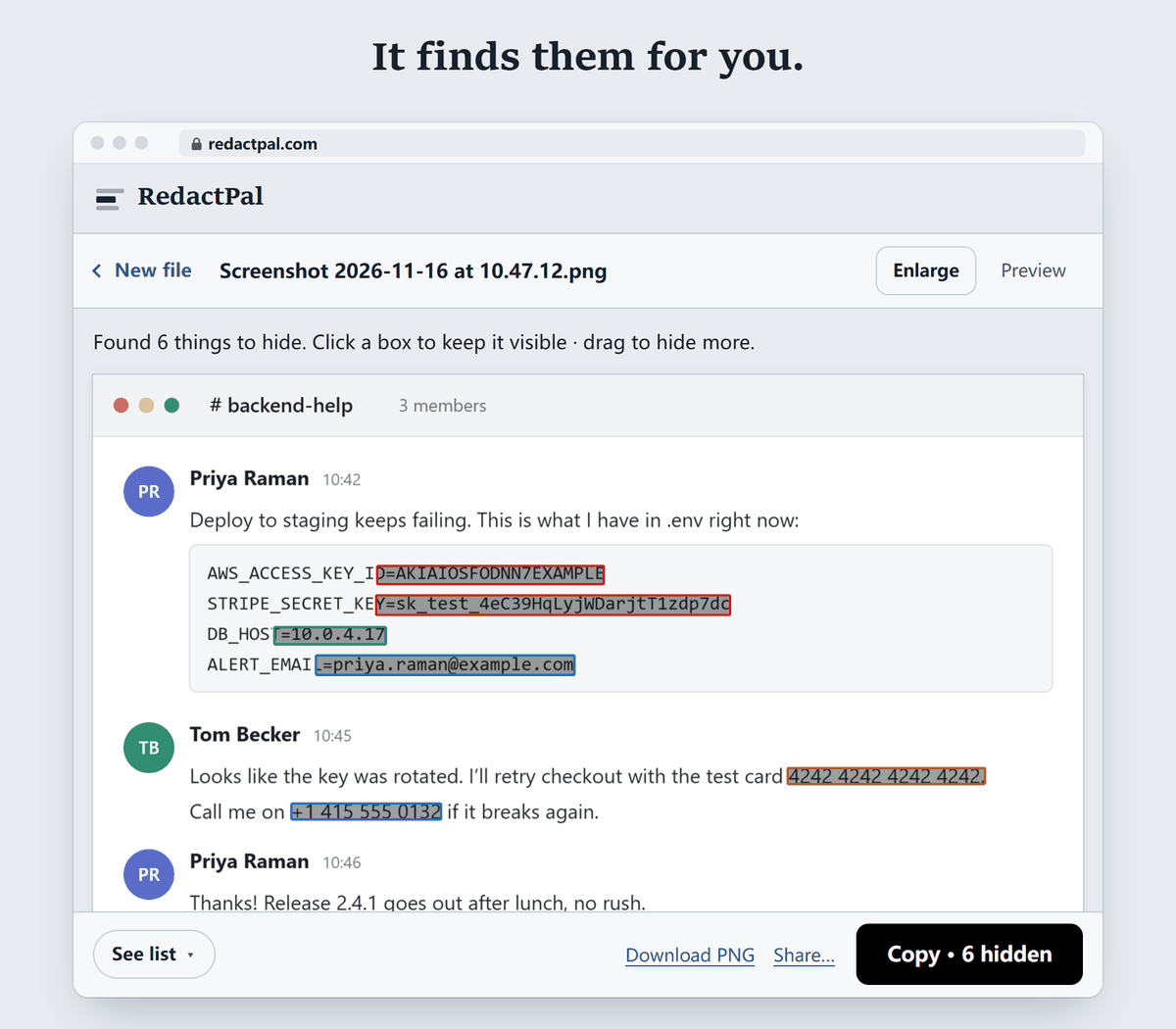
RedactPal is free, MIT-licensed, needs no account, and runs in your browser, so your screenshot is never uploaded. Paste the snip with Ctrl+V and it highlights emails, phone numbers, card numbers, IBANs, API keys and more, then covers them with solid boxes. The copy you export is re-encoded as a new image, so it has no leftover data from the original file and no EXIF metadata. See hiding API keys in screenshots for the key formats, and why blurring is not enough if you are tempted to blur instead.
Detection is rule-based, so look over the highlights before you copy, and drag over anything it missed, such as a name.
How to use Quick redact in Snipping Tool
- Take a snip. Open Snipping Tool and capture the area you want to share.
- Open Text actions. Click Text actions in the toolbar to run text recognition on the snip.
- Click Quick redact. Quick redact covers email addresses and phone numbers it finds.
- Review and save as a new file. Check the snip for anything left visible, then save it as a new file.
Snipping Tool redaction — questions
Is the text recognition done locally?
Yes, according to Microsoft. Its support page says all text recognition processes are performed locally on your device.
Can I undo a redaction?
Before you save, yes. The menu beside Quick redact has a Remove all redactions option, as described by Pureinfotech. A saved PNG is a flat image, so do not count on undoing it afterwards.
Why is Text actions missing or greyed out?
Update Snipping Tool from the Microsoft Store first: Text actions is a newer feature. Text recognition also needs readable text in the snip.
Does Snip and Sketch on Windows 10 have Quick redact?
Microsoft documents Quick redact for Snipping Tool on Windows 11. On Windows 10, or on any other computer, RedactPal does the same job in the browser, with more kinds of data detected.